

- gaps below RRP only. Offers above RRP are never covered;
- the products you choose: every product in a case, some product ranges, or single products;
- the days from From to Until, both included, in your organisation’s time zone. A promotion can last at most 120 days;
- prices no deeper than the Agreed depth (% below RRP), between 0.1% and 90%. A price deeper than that still counts as a gap. Leave the depth empty to cover any depth.
Record a promotion from a case
You need the Manage cases and Agreed promotions permissions.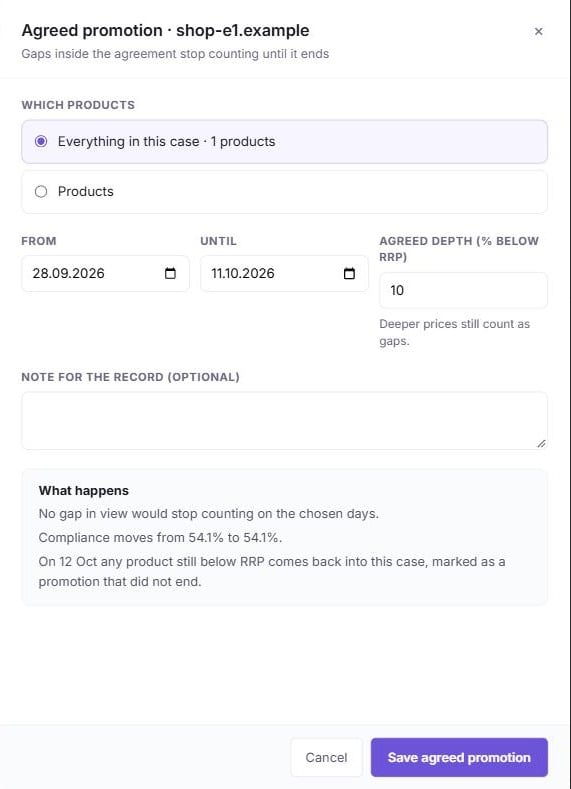
1
Open the dialog
On the Cases tab, select the reseller’s case and click Agreed promotion (or press P). You can also
choose Mark as agreed promotion in the reseller record, which opens the same dialog on the reseller’s case.
2
Choose the products
Under Which products, choose one:
- Everything in this case, the default;
- Product ranges, then click the ranges to include. This option is hidden when the case has a single range;
- Products, then tick products of the case. With the Product Overview Management permission you search your catalog instead.
3
Set the window and depth
From and Until start as today and 13 days later (14 days in all). Agreed depth (% below RRP) starts at
10. Add a Note for the record (optional) of up to 1,000 characters.
4
Check what happens
What happens is worked out from the current figures, for example:
- “12 gaps on 8 products stop counting until 30 Sep.”
- “Compliance moves from 84.2% to 87.9%.”
- “2 gaps deeper than 10% keep counting.”
- “On 1 Oct any product still below RRP comes back into this case, marked as a promotion that did not end.”
5
Save
Click Save agreed promotion. The case logs “Agreed promotion until …”, and the dashboard is recalculated.
Record promotions from All gaps
You can also mark gaps directly, without a case. You need the View Price Violations, Cases and Agreed promotions permissions.- On the All gaps tab, select the gaps below RRP. Gaps above RRP cannot be covered.
- Click Mark as agreed promotion in the bulk bar.
- Set From, Until, the depth and an optional note. The dialog records one promotion per reseller and market covering the selected gaps, and names the resellers.
- Click Save agreed promotion.
What a promotion changes
While a promotion runs, a gap it covers:- counts as compliant. Compliance reads “N of M comparable offers are compliant (within ±5% or in an agreed promotion)”;
- leaves the gap counts: the All gaps badge, New, Deeper, Critical, the depth bands, and the Where to act cards. It keeps its band, so you still see how deep it is;
- is hidden from All gaps, unless you tick Include gaps covered by an agreed promotion in the filters. Its Case column then reads Agreed promotion · until the last day;
- shows as In agreed promotions in the price map’s stats and “In an agreed promotion” on its matrix cell;
- is left out of reminders and follow-ups to the reseller.
When a promotion ends
- Seven days before the end, the Overview shows an Agreed promotion ending card, and the weekly digest lists it as a decision.
- After the last day, Omnilinker checks the covered products. Any still below RRP go back into the case the promotion was agreed in, or the reseller’s open case in that market, or a new case. They are marked “still below the reference after the agreed promotion ended”, and the case moves to Needs action with Agreed promotion ended.
- If every price is back within tolerance, the case only records “Agreed promotion ended”.