

Messages to resellers inform and ask. Each one says that recommended prices are for information only and that the
reseller decides the prices in its shop.
The Cases tab
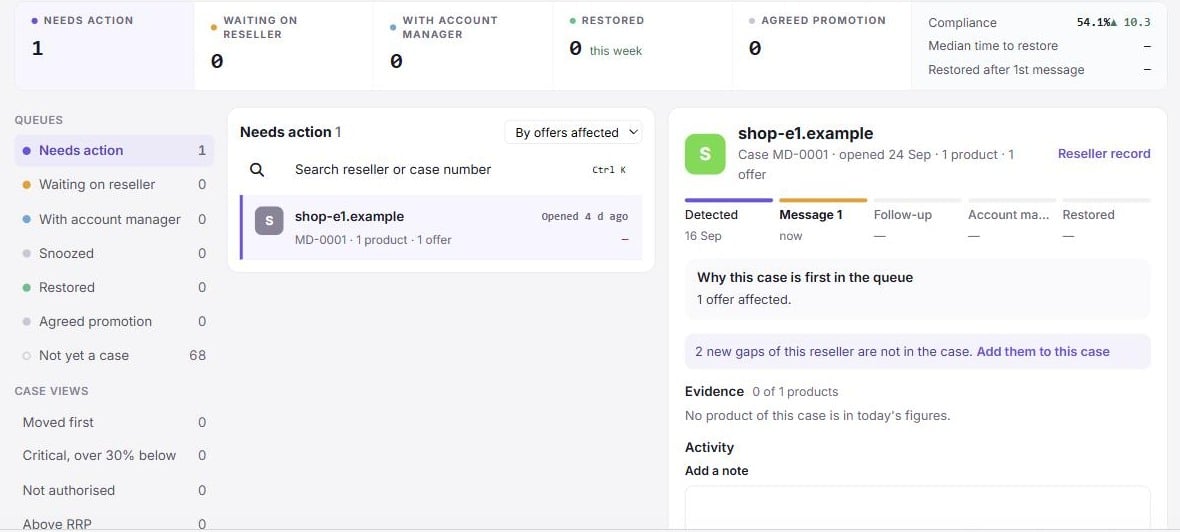
- The pipeline across the top shows how many cases sit in each queue, with “new today”, “overdue”, “due this week” and promotions ending, plus three figures: Compliance, Median time to restore and Restored after 1st message.
- Queues on the left: Needs action, Waiting on reseller, With account manager, Snoozed, Restored, Agreed promotion and Closed. Not yet a case lists resellers with gaps in view and no open case in that market, each with Start case.
- Case views narrow the list: Moved first, Critical, over 30% below, Not authorised and Above RRP.
- Contact rules shows your follow-up and account-manager days (“Reminder → follow-up after 3 days → account manager after 7. Messages inform and ask.”). With the Compliance settings permission, Edit rules opens the settings.
- The case list: search by reseller or case number, and sort By offers affected, By due date, By opening date or By reseller. Each row shows the reseller, the products and offers in the case, the deepest gap, what is due, and tags such as Moved first, Critical, Reopened or Ready to close.
- The case detail: the case number (for example
MD-0142), the case steps, the Evidence table (product, RRP, the price now, the gap, source and offer link), the Activity log, a note form and the action buttons.
Keyboard shortcuts
With the case list or detail focused: J next case, K previous case, F send the follow-up (or the first message), A hand to the account manager, P agreed promotion, S snooze for 7 days. A shortcut does nothing when the matching button is not offered.How a case is opened
You open cases; Omnilinker does not open one for every new gap. You can start or add to a case from:- Not yet a case on the Cases tab: Start case;
- a Where the cut started card on the Overview: Start case;
- All gaps: select gaps and click Add to case, or group by reseller and click Start case;
- the reseller record: Start case.
- Prices dropped again. When a product that a case restored goes back below the tolerance, the reseller’s open case takes the new gap. If the case was already restored or closed, and the product was restored in the last 30 days, the case reopens with the gaps below RRP on those products. Gaps on products that no case of the reseller ever held are never added on their own.
- An agreed promotion ended with prices still below RRP. The gaps go back into the case the promotion was agreed in, or the reseller’s open case in that market, or a new case. They are marked “still below the reference after the agreed promotion ended”.
Case lifecycle
A case moves through these steps, shown at the top of the detail: Detected, Message 1, Follow-up, Account manager, and Partly restored or Restored. Omnilinker works out its queue each time you look:What happens to each gap in a case
The Cases group of the glossary (click Terms in the page header) names what can happen to each offer a case follows:Follow-up and account manager days
Both are counted in days from the first message, in your organisation’s time zone:- the follow-up comes due after the follow-up days (3 by default), when exactly one message has been sent;
- the account manager step comes due after the account-manager days (7 by default), when the case has not been handed over yet.
Message a reseller
You need the Send messages to resellers permission.1
Open the message dialog
In the case detail, click Send reminder for the first message, Send follow-up after it, or Send a
thank-you once products are restored.
2
Check the message
Choose the Template (RRP reminder · first message, RRP reminder · follow-up or Thank-you) and the
Language (English or Polski). Read the preview; add a Personal note (optional) of up to 1,000
characters.
3
Attach the evidence
Attach evidence (CSV) for all N products is ticked by default. Click Preview to see the file.
4
Send
Click Send message (or Send follow-up, Send thank-you). Optionally tick Note it on the N cases with
the same products to leave a line on other resellers’ cases that hold the same products.
- Reminders and follow-ups cover the products in the case that are below RRP and not in an agreed promotion. Gaps above RRP stay listed in the case but are never e-mailed. If the case has no such gap and nothing was restored, the detail explains that there is nothing to e-mail.
- A thank-you lists the restored products. It does not count as contact, so it does not move follow-up dates.
- The subject is “Example Brand recommended prices”, “Following up: Example Brand recommended prices” or “Thank you: Example Brand prices”.
- The body gives the number of products, when they were checked and how far below RRP they typically were, your personal note, and a signature with your name, your e-mail address and your organisation’s name.
- The evidence CSV has one row per product: product, SKU, GTIN, reference price level, recommended price, currency, price in the shop, difference (%), when it was checked (UTC), source and offer link.
When the reseller has no e-mail address
The dialog says “No contact on file” for the reseller. You can:- type an Email address, and, with Merchant > Update, tick Save it on the reseller record for next time;
- click Copy message and evidence, send it by phone or marketplace chat, and log it as sent another way;
- Hand to the account manager, who may have a direct contact.
Log a message sent another way
Click Log a message sent another way. Choose How was it sent? (Phone, Marketplace chat or Other), When (not in the future), and optionally What was said, then click Log message. A logged reminder or follow-up counts as contact from the day you give. E-mail cannot be logged: send it from the dialog.Log the reseller’s reply
In the note form, tick This is the reseller’s reply and click Log reply. Replies and notes can have up to 1,000 characters.Other case actions
These need the Manage cases permission.- Add a note: type in the note form and click Save note.
- Hand to account manager: choose the Account manager (an active user of your organisation, prefilled with the reseller’s), add an optional note and click Hand over. The person is notified in Omnilinker. With Merchant > Update, tick Save as this reseller’s account manager to store the choice on the reseller.
- Agreed promotion: record a promotion you agreed with the reseller; see Agreed promotions. Also needs Agreed promotions.
- Snooze: hide the case for 3, 7 or 14 days. A case can be snoozed for at most 30 days. End snooze brings it back.
- Mark restored products as reviewed: when some products are restored, a banner on the tab and the detail show “N of M products are back within ±5%”. Choose Close the N, keep M open, or Close the whole case. A closed case reopens by itself if prices drop again within 30 days.
Reseller contact details
The reseller record (click the reseller’s name) shows Email, Phone, Contact person, Message language, Preferred contact and Account manager. Edit contact needs both Manage cases and Merchant > Update, because the e-mail address is where messages go. Every open case of the reseller logs “Contact details updated”.Close or reopen a case
Click Close case, choose Why is this case closed?, add an optional note and click Close case. The reasons offered depend on the case:
Reopen case reopens a closed or restored case. It is refused when the reseller already has another open case in
that market.
Permissions
See Setup for which roles received these
permissions automatically.