> ## Documentation Index
> Fetch the complete documentation index at: https://docs.omnilinker.pl/llms.txt
> Use this file to discover all available pages before exploring further.
# Compliance settings and digest
> Set the price tolerance, the compliance target and the contact rules, and get the weekly compliance digest by e-mail.
Four settings decide how the manufacturer dashboard judges prices and when cases ask for the next contact. They apply
to your whole organisation. The weekly digest is separate: each person subscribes to it from the dashboard.
## Change the compliance settings
You need the **Compliance settings** permission.
Open **Administration** > **Settings**, select the **PricingIntelligence** group, and choose the **Manufacturer
compliance** tab. The **Review tolerance** button on the dashboard and **Edit rules** on the **Cases** tab also
lead to the settings page.
Edit the fields described below. A message under a field says when a value cannot be saved.
Click **Save**. Omnilinker confirms "Compliance settings saved. The dashboard is being recalculated." and
re-evaluates every open gap.
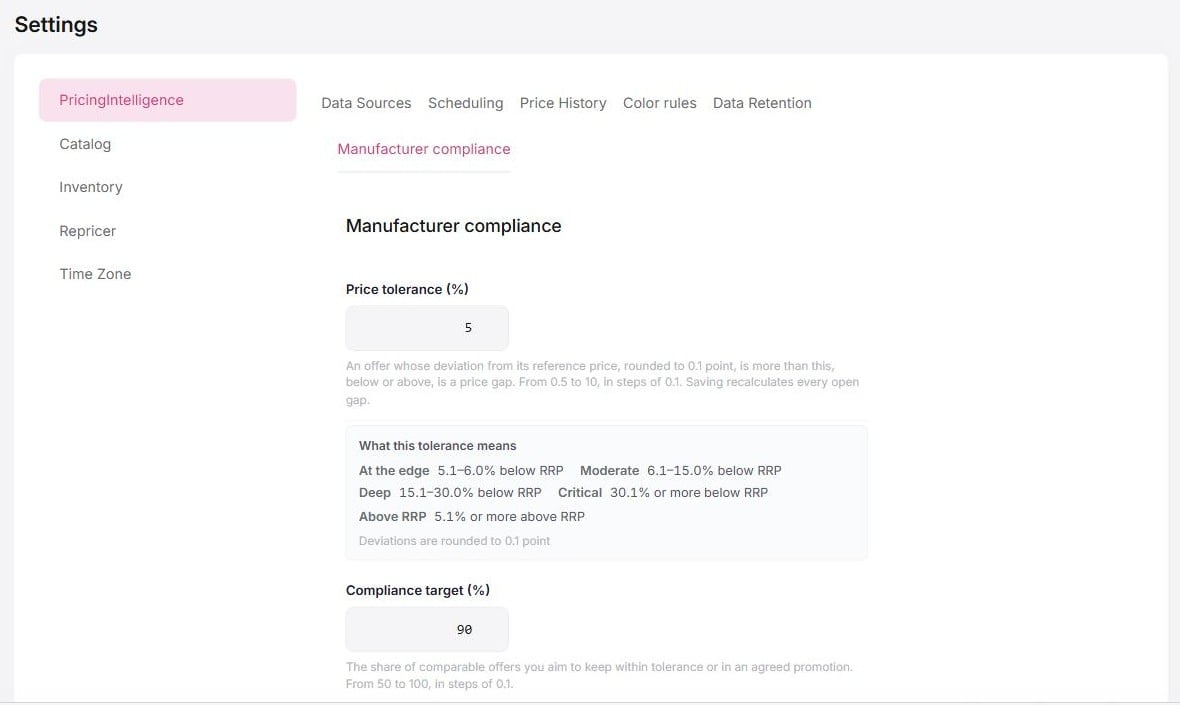 ## The settings
| Field | Default | Allowed values | What it does |
| -------------------------------------------- | ------- | ----------------------------------------------------------------- | ---------------------------------------------------------------------------------------------------------------------------------------- |
| **Price tolerance (%)** | 5 | 0.5 to 10, in steps of 0.1 | An offer whose deviation from its reference price, rounded to 0.1 point, is more than this below or above is a gap. |
| **Compliance target (%)** | 90 | 50 to 100, in steps of 0.1 | The share of comparable offers you aim to keep within tolerance or in an agreed promotion. The dashboard measures compliance against it. |
| **Suggest a follow-up after (days)** | 3 | 1 to 30, whole days | Days after the first message before a case suggests a follow-up. |
| **Suggest the account manager after (days)** | 7 | 2 to 60, whole days, and at least one day more than the follow-up | Days after the first message before a case suggests handing it to the account manager. |
The settings keys are `PricingIntelligence.ManufacturerDashboard.TolerancePercent`,
`PricingIntelligence.ManufacturerDashboard.ComplianceTargetPercent`,
`PricingIntelligence.ManufacturerDashboard.FollowUpAfterDays` and
`PricingIntelligence.ManufacturerDashboard.AccountManagerAfterDays`.
### Price tolerance
Under the tolerance, **What this tolerance means** lists the bands for the value you typed, before you save. With 5%:
* **At the edge**: 5.1–6.0% below RRP
* **Moderate**: 6.1–15.0% below RRP
* **Deep**: 15.1–30.0% below RRP
* **Critical**: 30.1% or more below RRP
* **Above RRP**: 5.1% or more above RRP
Deviations are rounded to 0.1 point, so a price exactly at the tolerance is within it. **At the edge** always covers
the first point beyond your tolerance; the other bands start at fixed depths.
When you change the tolerance:
* gaps that open or close only because of the new tolerance are not counted as **New** or **Restored**;
* the verdict does not compare today with a day judged under the old tolerance, so it states compliance without a
change until the compare day uses the new one;
* the trend chart marks the day the tolerance changed, lists it under **What happened**, and each day's hover card
says which tolerance that day was judged at ("Judged at ±5%");
* the definitions in the dashboard's term hints and glossary use the new value.
The **Decide the policy** card on the **Overview** suggests reviewing the tolerance when many gaps sit just past it.
See [Where to act](/pricing-intelligence/manufacturer-dashboard/overview#where-to-act).
### Compliance target
The target is drawn on the compliance gauge, the trend chart and the compliance line in the reseller record. The **Overview** shows its all-clear state only when
compliance, as shown, is at or above the target.
### Contact rules
The follow-up and account-manager days are counted from the first message to the reseller, in your organisation's
time zone. A change applies to every open case at once. See
[Follow-up and account manager days](/pricing-intelligence/manufacturer-dashboard/cases#follow-up-and-account-manager-days).
## The freshness window
The dashboard leaves out prices older than the freshness window, and says so in its status line ("prices older than
7 days are left out"). The window is not on the **Manufacturer compliance** tab: it is the **Competitor freshness
window (days)** setting on the Repricer settings, shared with the Repricer and the product overview. The default is
7 days; you can set 1 to 90.
A data source whose last completed scrape is older than the window counts as silent. When silent sources hold 20% or
more of the offers you know about, the dashboard puts its verdict on hold.
## What Send digest does
The digest is an e-mail summary of the **Overview**: the verdict, up to three decisions ranked by offers affected,
compliance over the last 30 days against your target, and a link to open the dashboard. It always covers every brand,
and compares compliance with a week ago.
On the **Overview** tab, click **Send digest** to open **Weekly digest**:
* The dialog shows the **Subject** and a preview of the e-mail for the market you are viewing.
* **Send to me** sends that e-mail to the address on your user account. It shows "Sent to …" when done. You can send
it again after a couple of minutes.
* **Email me this digest every Monday at 08:00** subscribes you to the weekly digest. The time is in your
organisation's time zone, shown next to it (UTC when none is set). The change is saved at once.
* **Market** chooses the market the weekly digest describes, or **My home market at the time**, which uses your home
market when the digest is sent.
The subscription belongs to you: every user subscribes for themselves. It is stored in the settings
`PricingIntelligence.ManufacturerDashboard.Digest.Enabled` (off by default) and
`PricingIntelligence.ManufacturerDashboard.Digest.MarketId` (empty by default).
### When the weekly digest is sent
* Every Monday at 08:00 in your organisation's time zone. If that send was missed, it goes out later the same week.
You get at most one per week.
* It is written in your language, or your organisation's default language, else English.
* It is not sent while the verdict is on hold. The **Send digest** button then reads **Digest paused**.
* It is not sent when your account has no e-mail address, or when you no longer have the **Manufacturer Dashboard**
permission.
Each digest ends with a link, **Manage the digest on the Manufacturer Dashboard**, that opens the dashboard with this
dialog.
## Your organisation's time zone
Days on the dashboard (the period, the trend, contact due dates, promotion windows and the digest schedule) follow
your organisation's time zone. Without one, the dashboard uses UTC and says "Dates are in UTC: your organisation has
no time zone set." See [Settings](/administration/settings).
## The settings
| Field | Default | Allowed values | What it does |
| -------------------------------------------- | ------- | ----------------------------------------------------------------- | ---------------------------------------------------------------------------------------------------------------------------------------- |
| **Price tolerance (%)** | 5 | 0.5 to 10, in steps of 0.1 | An offer whose deviation from its reference price, rounded to 0.1 point, is more than this below or above is a gap. |
| **Compliance target (%)** | 90 | 50 to 100, in steps of 0.1 | The share of comparable offers you aim to keep within tolerance or in an agreed promotion. The dashboard measures compliance against it. |
| **Suggest a follow-up after (days)** | 3 | 1 to 30, whole days | Days after the first message before a case suggests a follow-up. |
| **Suggest the account manager after (days)** | 7 | 2 to 60, whole days, and at least one day more than the follow-up | Days after the first message before a case suggests handing it to the account manager. |
The settings keys are `PricingIntelligence.ManufacturerDashboard.TolerancePercent`,
`PricingIntelligence.ManufacturerDashboard.ComplianceTargetPercent`,
`PricingIntelligence.ManufacturerDashboard.FollowUpAfterDays` and
`PricingIntelligence.ManufacturerDashboard.AccountManagerAfterDays`.
### Price tolerance
Under the tolerance, **What this tolerance means** lists the bands for the value you typed, before you save. With 5%:
* **At the edge**: 5.1–6.0% below RRP
* **Moderate**: 6.1–15.0% below RRP
* **Deep**: 15.1–30.0% below RRP
* **Critical**: 30.1% or more below RRP
* **Above RRP**: 5.1% or more above RRP
Deviations are rounded to 0.1 point, so a price exactly at the tolerance is within it. **At the edge** always covers
the first point beyond your tolerance; the other bands start at fixed depths.
When you change the tolerance:
* gaps that open or close only because of the new tolerance are not counted as **New** or **Restored**;
* the verdict does not compare today with a day judged under the old tolerance, so it states compliance without a
change until the compare day uses the new one;
* the trend chart marks the day the tolerance changed, lists it under **What happened**, and each day's hover card
says which tolerance that day was judged at ("Judged at ±5%");
* the definitions in the dashboard's term hints and glossary use the new value.
The **Decide the policy** card on the **Overview** suggests reviewing the tolerance when many gaps sit just past it.
See [Where to act](/pricing-intelligence/manufacturer-dashboard/overview#where-to-act).
### Compliance target
The target is drawn on the compliance gauge, the trend chart and the compliance line in the reseller record. The **Overview** shows its all-clear state only when
compliance, as shown, is at or above the target.
### Contact rules
The follow-up and account-manager days are counted from the first message to the reseller, in your organisation's
time zone. A change applies to every open case at once. See
[Follow-up and account manager days](/pricing-intelligence/manufacturer-dashboard/cases#follow-up-and-account-manager-days).
## The freshness window
The dashboard leaves out prices older than the freshness window, and says so in its status line ("prices older than
7 days are left out"). The window is not on the **Manufacturer compliance** tab: it is the **Competitor freshness
window (days)** setting on the Repricer settings, shared with the Repricer and the product overview. The default is
7 days; you can set 1 to 90.
A data source whose last completed scrape is older than the window counts as silent. When silent sources hold 20% or
more of the offers you know about, the dashboard puts its verdict on hold.
## What Send digest does
The digest is an e-mail summary of the **Overview**: the verdict, up to three decisions ranked by offers affected,
compliance over the last 30 days against your target, and a link to open the dashboard. It always covers every brand,
and compares compliance with a week ago.
On the **Overview** tab, click **Send digest** to open **Weekly digest**:
* The dialog shows the **Subject** and a preview of the e-mail for the market you are viewing.
* **Send to me** sends that e-mail to the address on your user account. It shows "Sent to …" when done. You can send
it again after a couple of minutes.
* **Email me this digest every Monday at 08:00** subscribes you to the weekly digest. The time is in your
organisation's time zone, shown next to it (UTC when none is set). The change is saved at once.
* **Market** chooses the market the weekly digest describes, or **My home market at the time**, which uses your home
market when the digest is sent.
The subscription belongs to you: every user subscribes for themselves. It is stored in the settings
`PricingIntelligence.ManufacturerDashboard.Digest.Enabled` (off by default) and
`PricingIntelligence.ManufacturerDashboard.Digest.MarketId` (empty by default).
### When the weekly digest is sent
* Every Monday at 08:00 in your organisation's time zone. If that send was missed, it goes out later the same week.
You get at most one per week.
* It is written in your language, or your organisation's default language, else English.
* It is not sent while the verdict is on hold. The **Send digest** button then reads **Digest paused**.
* It is not sent when your account has no e-mail address, or when you no longer have the **Manufacturer Dashboard**
permission.
Each digest ends with a link, **Manage the digest on the Manufacturer Dashboard**, that opens the dashboard with this
dialog.
## Your organisation's time zone
Days on the dashboard (the period, the trend, contact due dates, promotion windows and the digest schedule) follow
your organisation's time zone. Without one, the dashboard uses UTC and says "Dates are in UTC: your organisation has
no time zone set." See [Settings](/administration/settings).